

Farhad Hossen•8 mins
A Complete Guide to Connecting GoHighLevel with Claude Code, Cursor, and Gemini CLI
- AI
- Marketing
Read in 5 mins
GoHighLevel has no native comment system. Learn how to add one to your GHL blog in under 5 minutes using OpenRemark, it's free, open-source, and no coding required.

Author
Farhad HossenPublished on
Categories
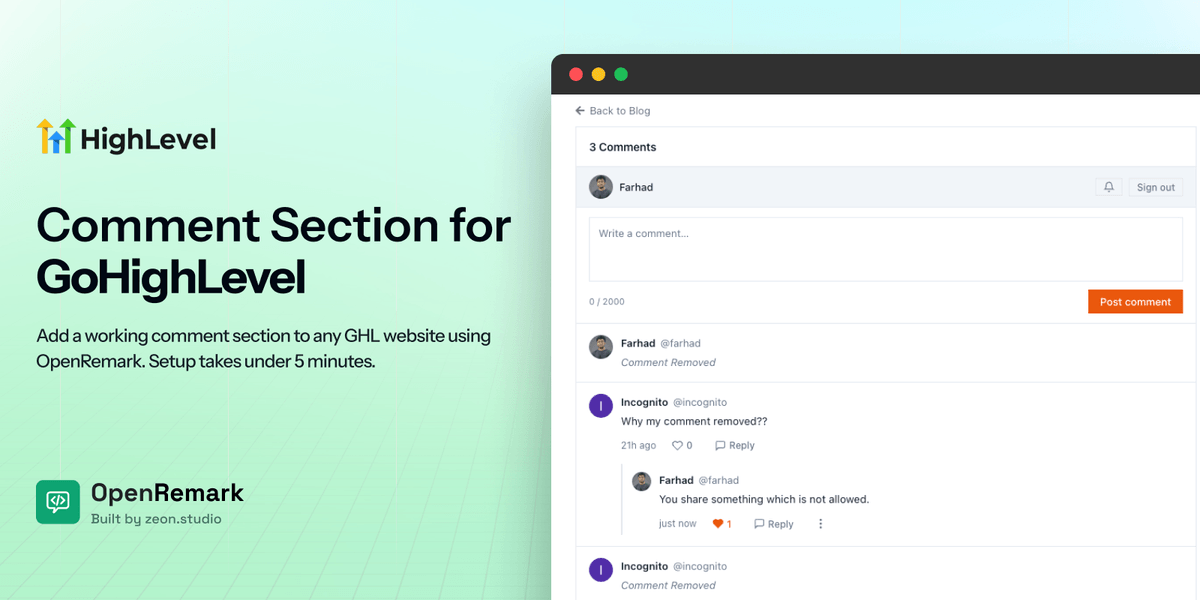
GoHighLevel has a fully functional blog builder. You can write posts, add cover images, set SEO metadata, and publish to a custom domain. What you cannot do is let readers leave comments. The GHL community has been asking for comment section in blog since July 2022. The feature request sits at 329+ upvotes on the official ideas board, marked as “Planned.” As of 2026, it has not shipped. One user on the ideas board put it directly: “It is 2026 and we have blogs with no comments. Seriously… what is going on here?”
Another wrote: “One of my clients requested a blog and after all the configuration I found out it’s not possible to enable comments. Then what is the point of this?”
If you are a GHL reseller or agency with clients asking for comments, here is how to fix it today, without waiting for GHL to build it.
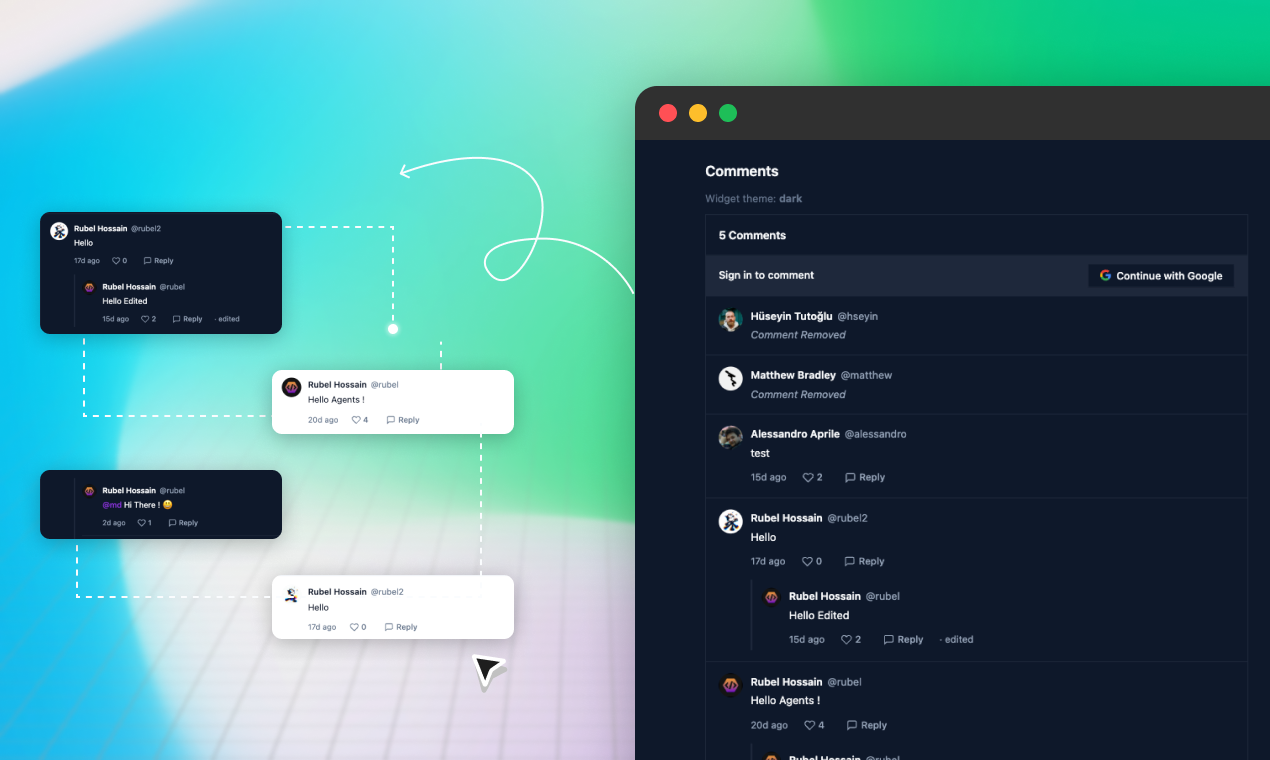
OpenRemark is an open-source comment system built by Zeon Studio. It was originally built for static site generators like Astro, Hugo, and Next.js, but it works on any website that lets you add a custom HTML snippet, including GoHighLevel.
It embeds with two lines of HTML. No build step, no plugin, no developer required on your end.
Features included on all plans:
OpenRemark is free for one site with unlimited comments. A $47 one-time payment covers unlimited sites with priority support and all future updates.
Go to OpenRemark and click “Get started free.” Sign in with Google. No credit card required.
Once inside the dashboard, add your website. Enter the domain where your GHL blog lives (for example, yourdomain.com). OpenRemark will generate a unique site key tied to that domain.
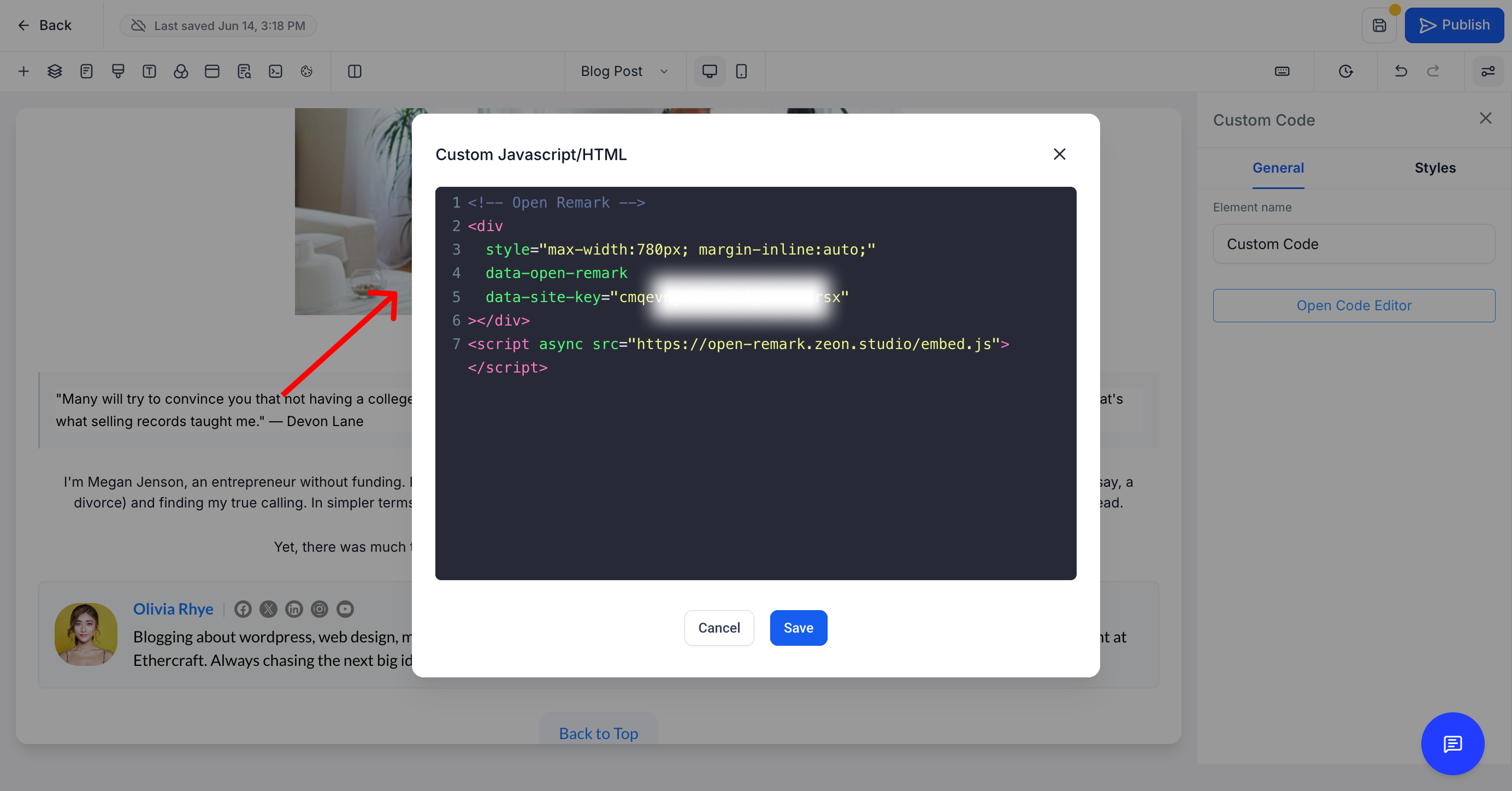
After registering your site, OpenRemark gives you an embed snippet. It looks like this:
{/* Open Remark */}
<div
  data-open-remark
  data-site-key="YOUR_SITE_KEY"></div>
<script async src="https://open-remark.zeon.studio/embed.js"></script>
Replace YOUR_SITE_KEY with the key from your dashboard.
Before pasting into GHL, add one inline style to the <div> so the comment widget aligns with GHL’s blog content width:
{/* Open Remark */}
<div
  style="max-width:780px; margin-inline:auto;"
  data-open-remark
  data-site-key="YOUR_SITE_KEY"></div>
<script async src="https://open-remark.zeon.studio/embed.js"></script>
The max-width: 780px and margin-inline: auto match the default GHL blog post container width, so the comment section sits flush with your content instead of stretching edge to edge.
Copy the full snippet with the style included. That is what you will paste in Step 3.
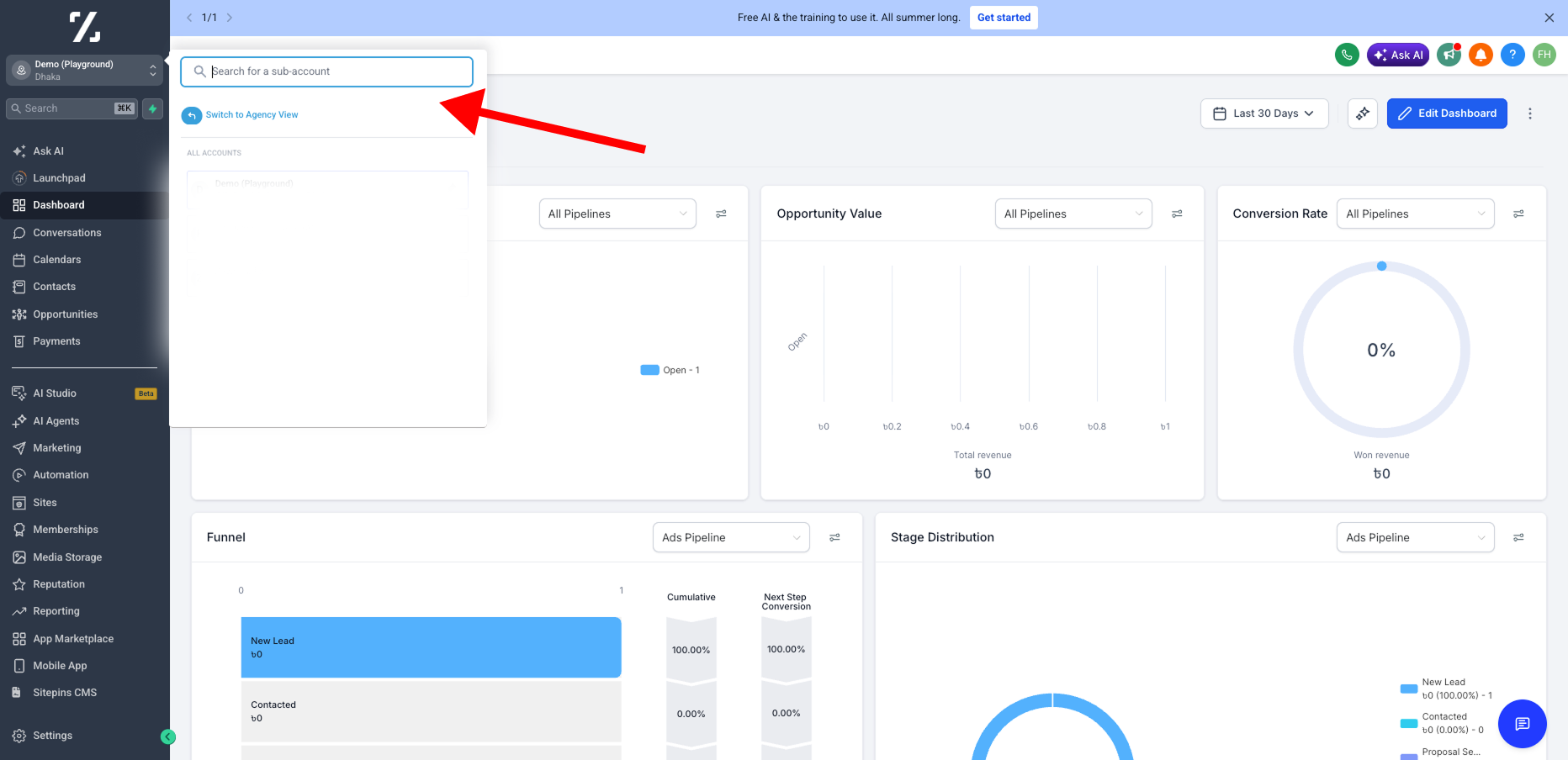
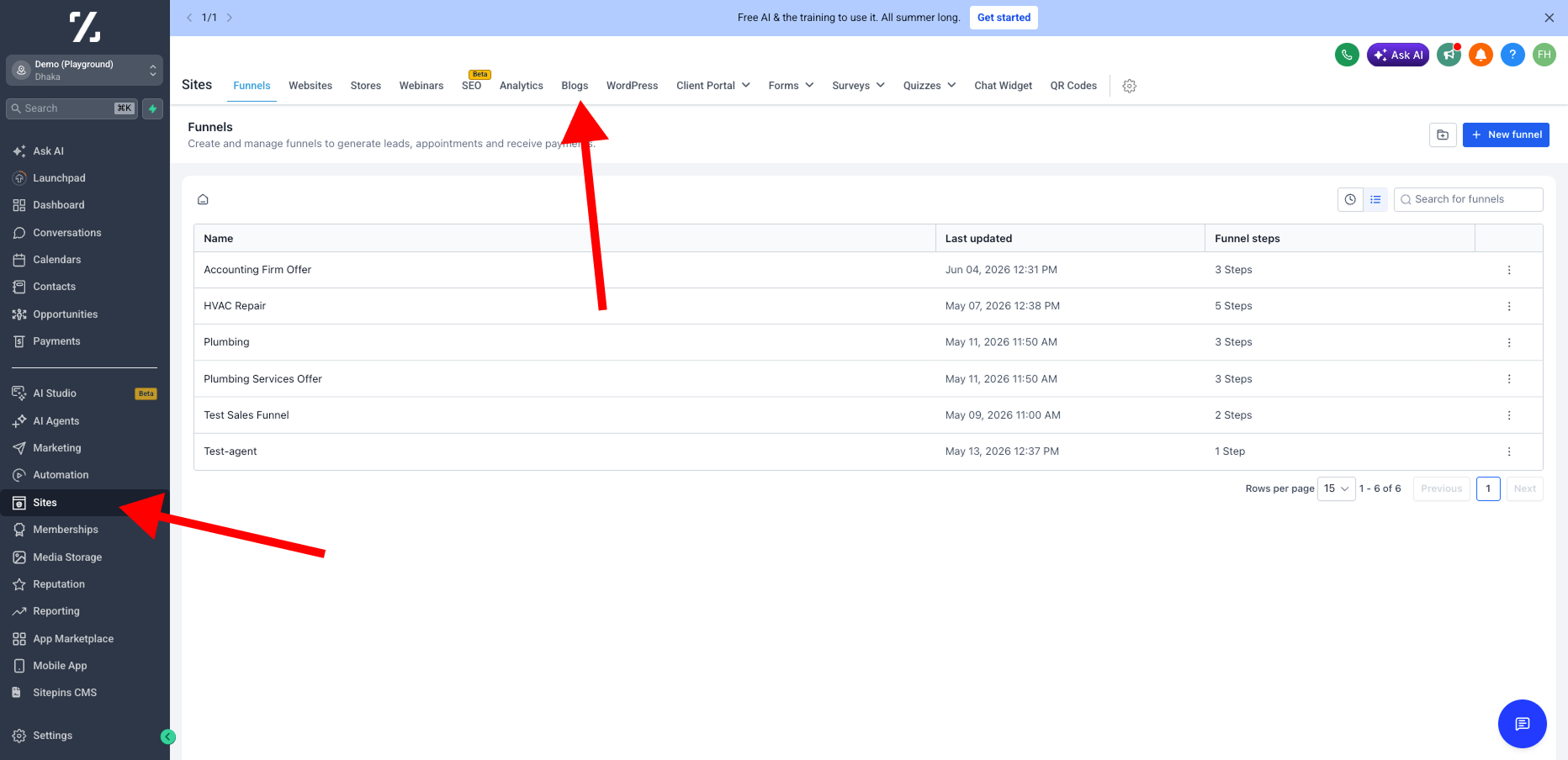
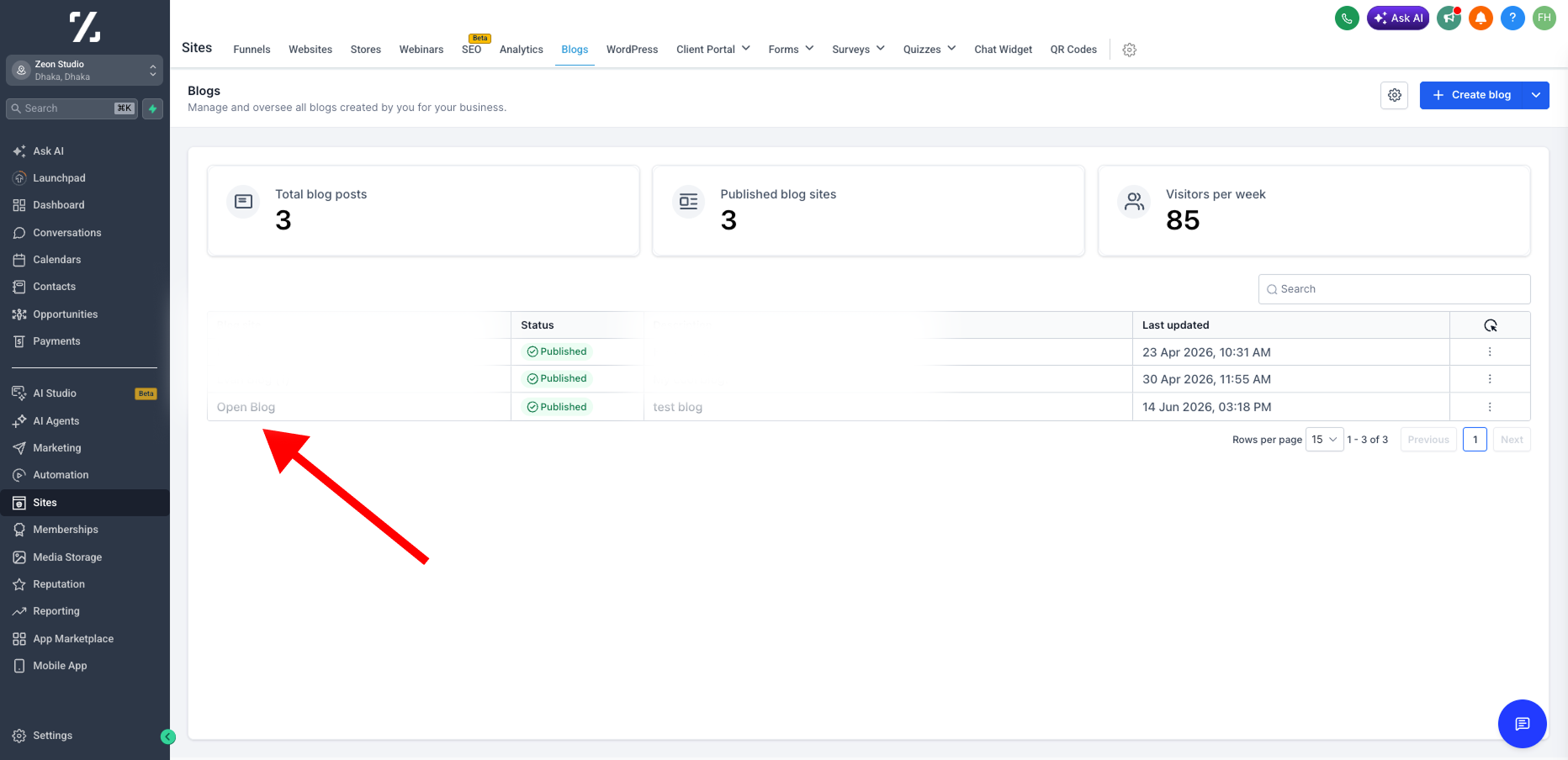
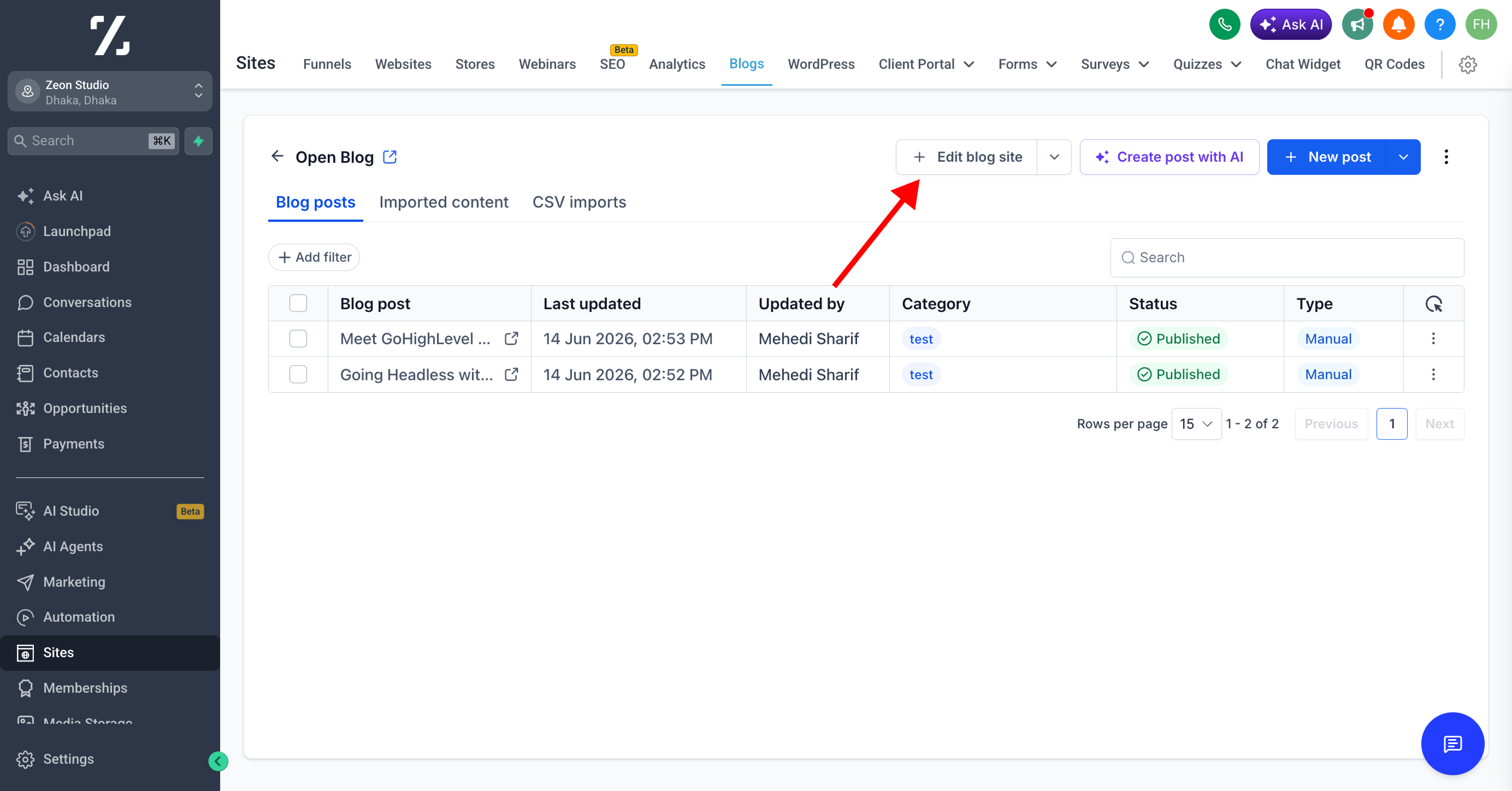
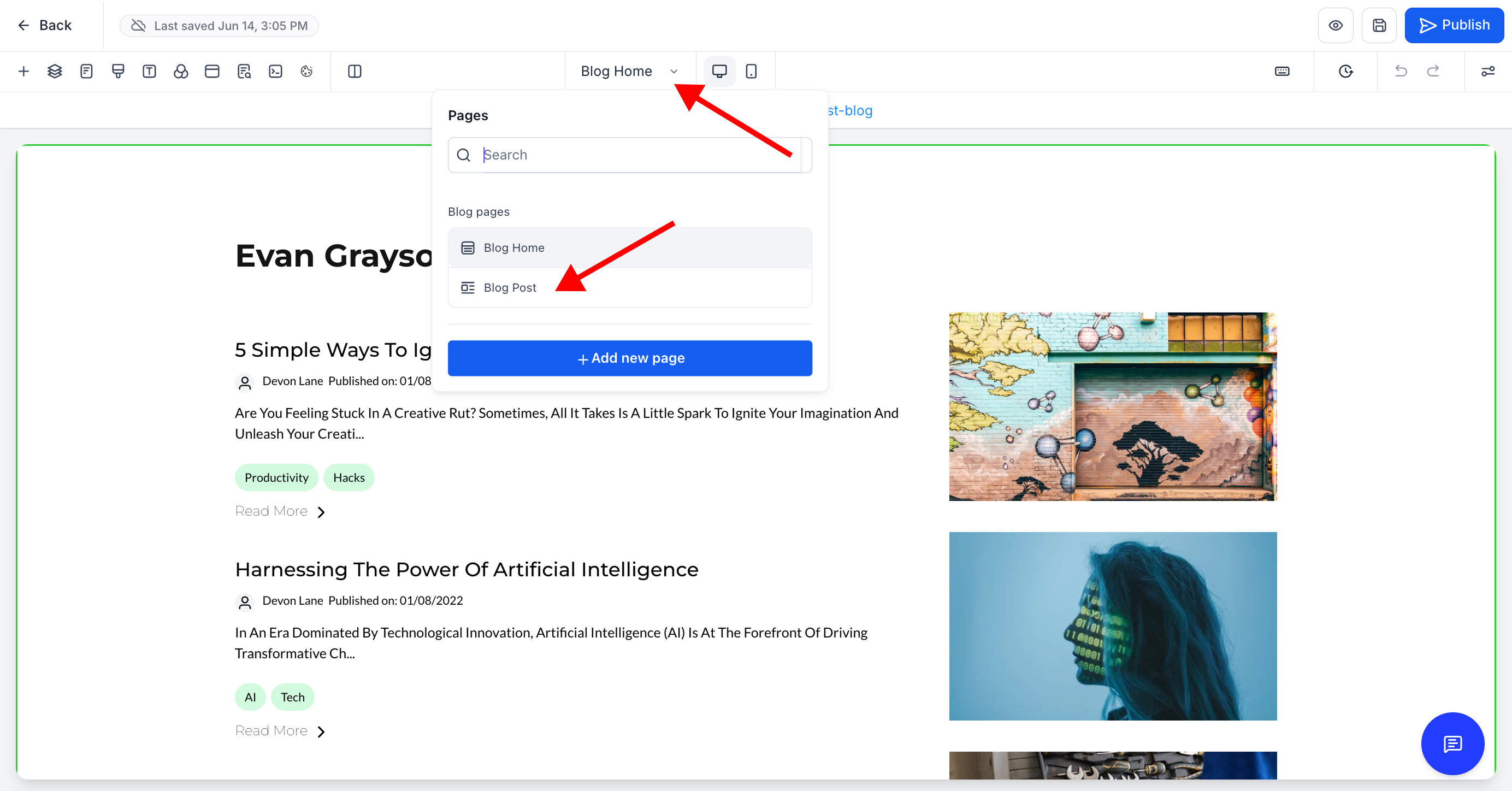
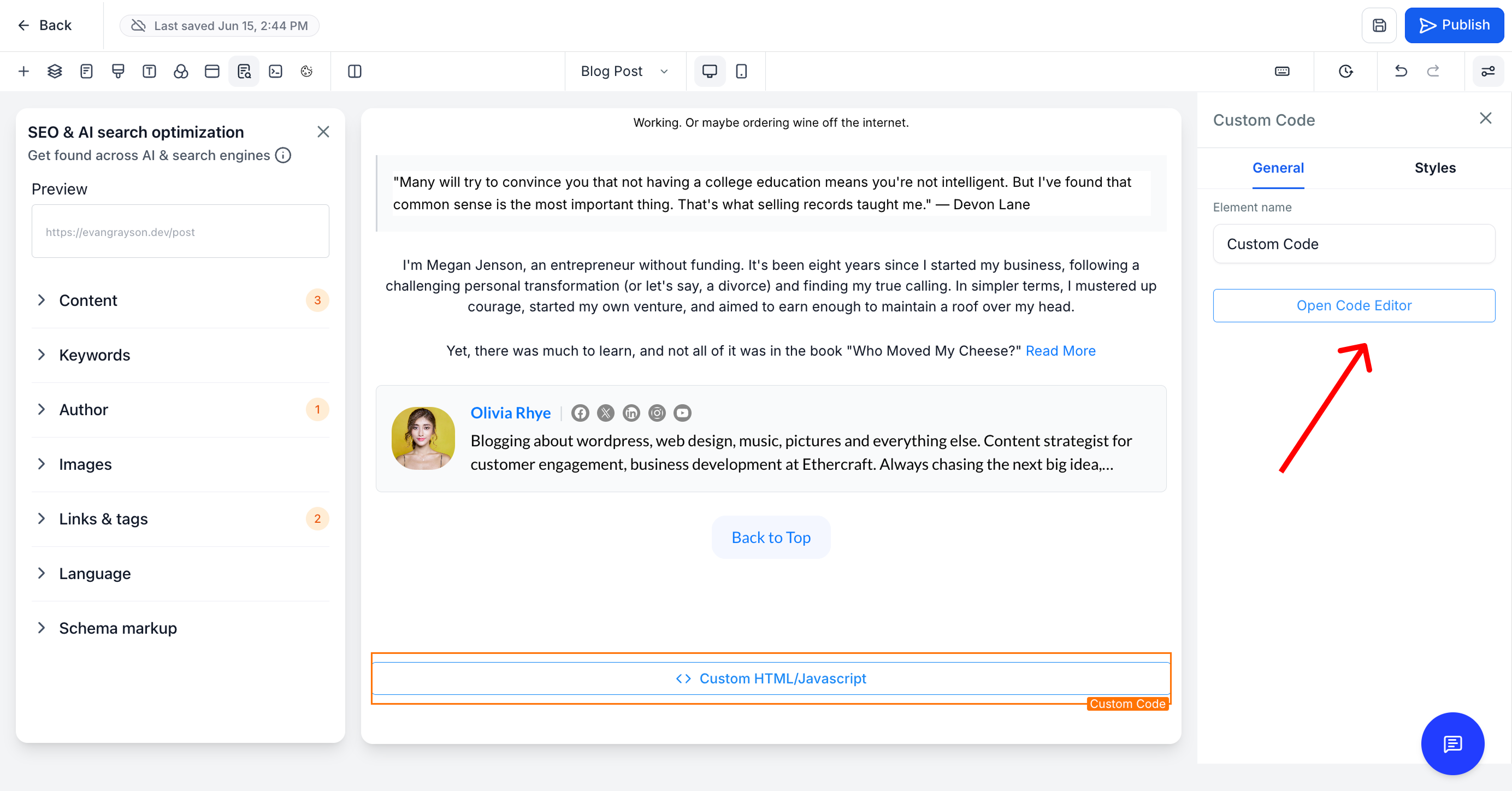
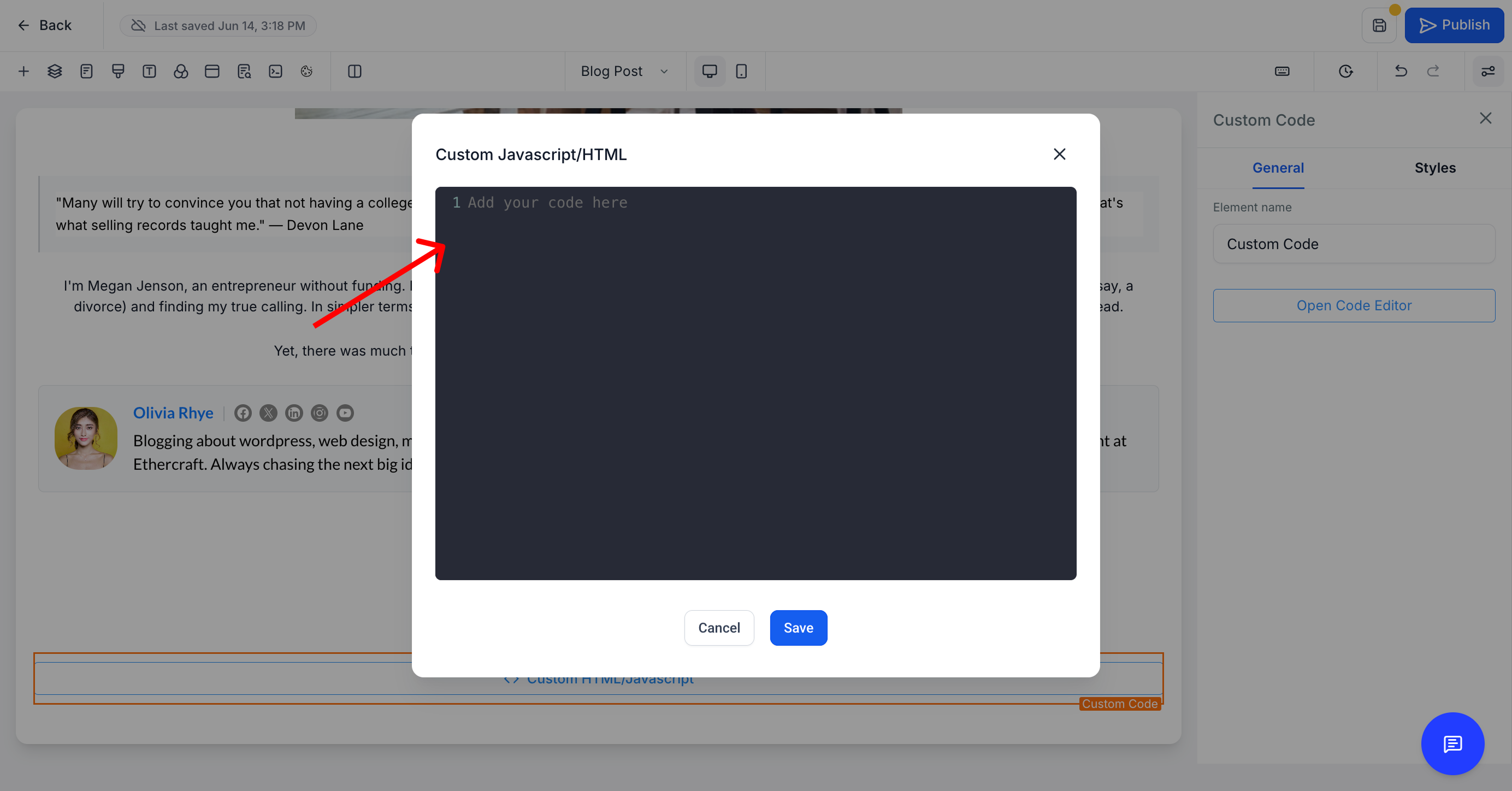
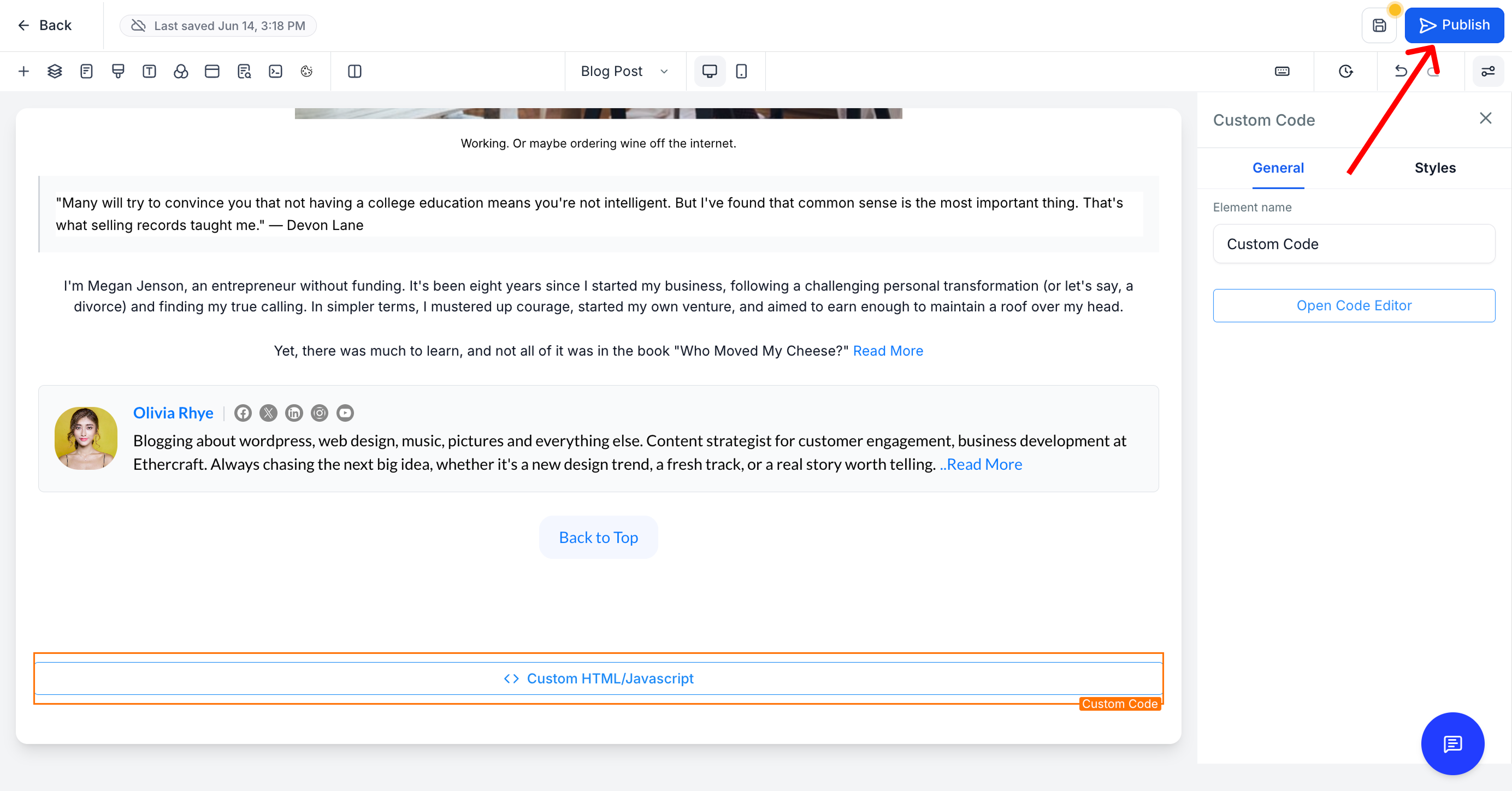
This is where you paste the code into GoHighLevel:
That’s the full setup. Every blog post on that site will now show a comment section at the bottom.
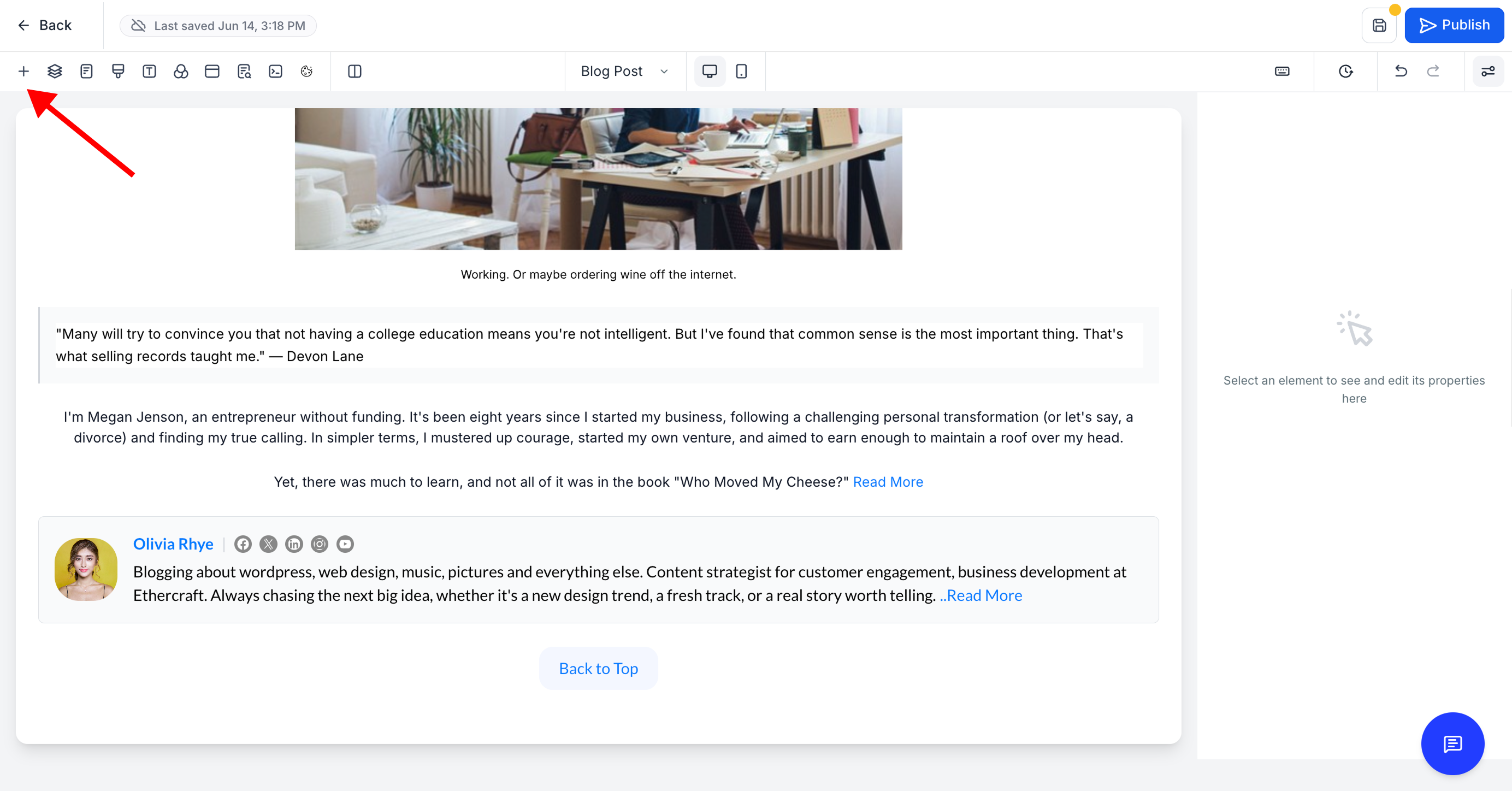
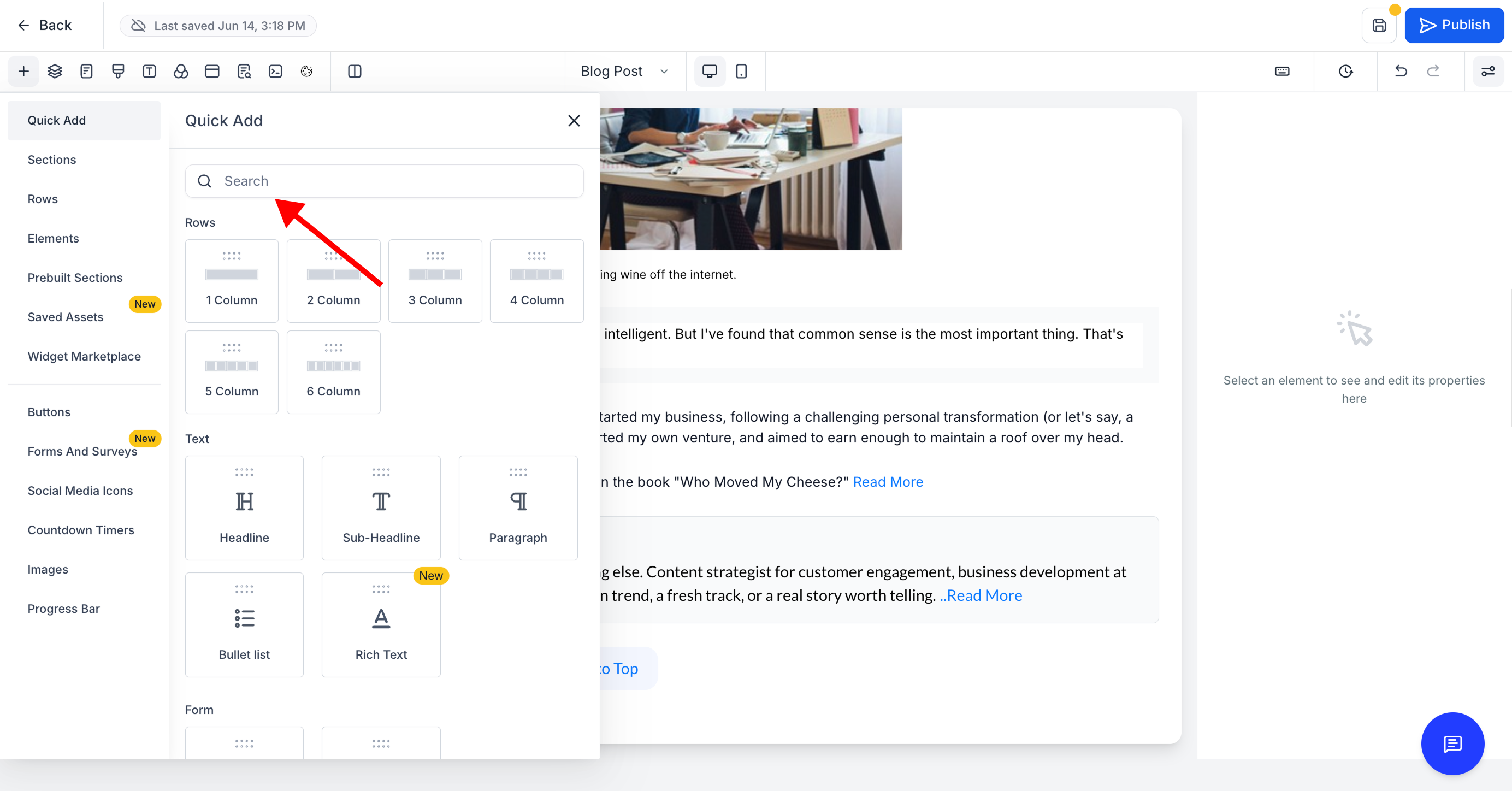
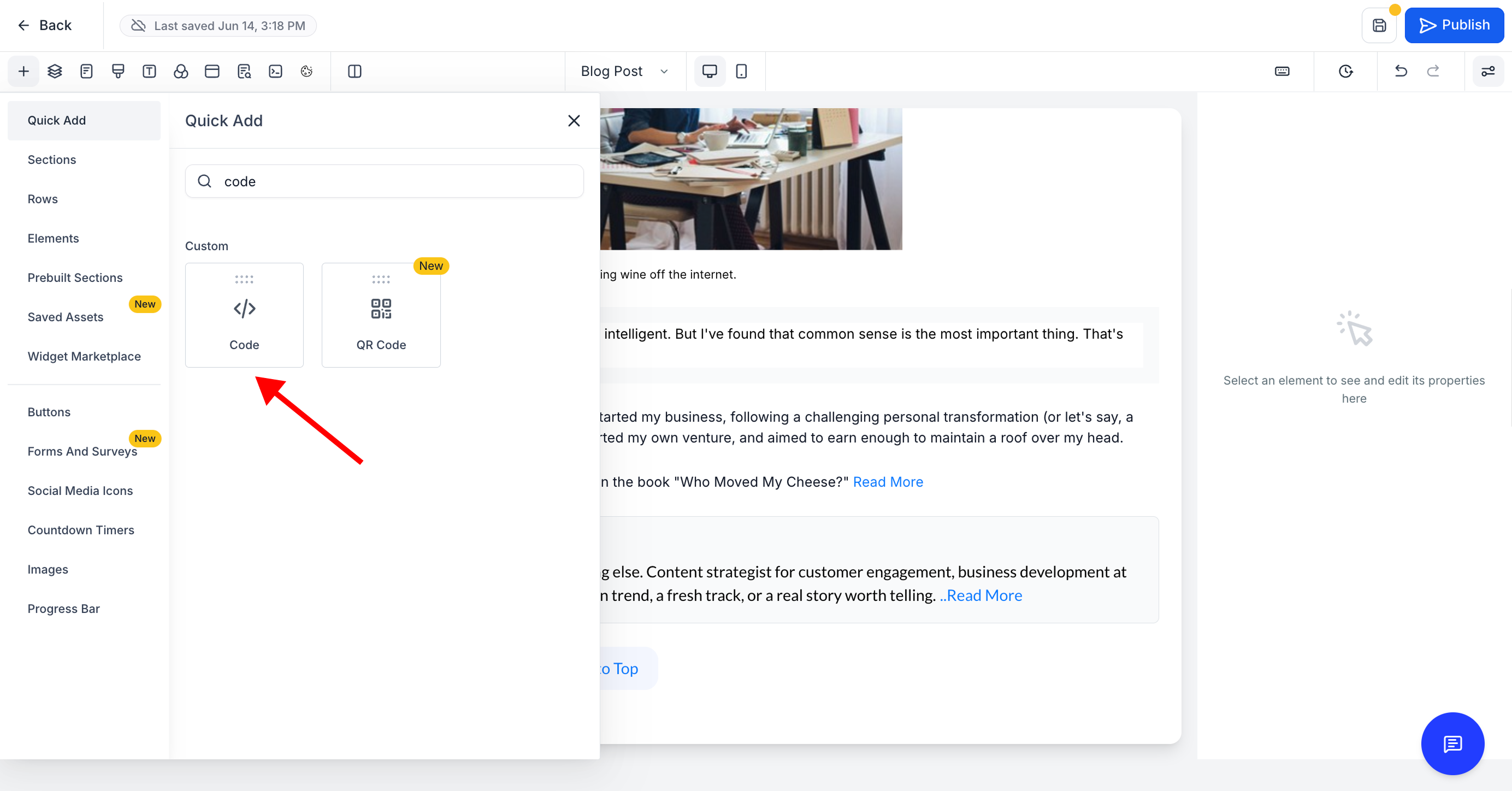
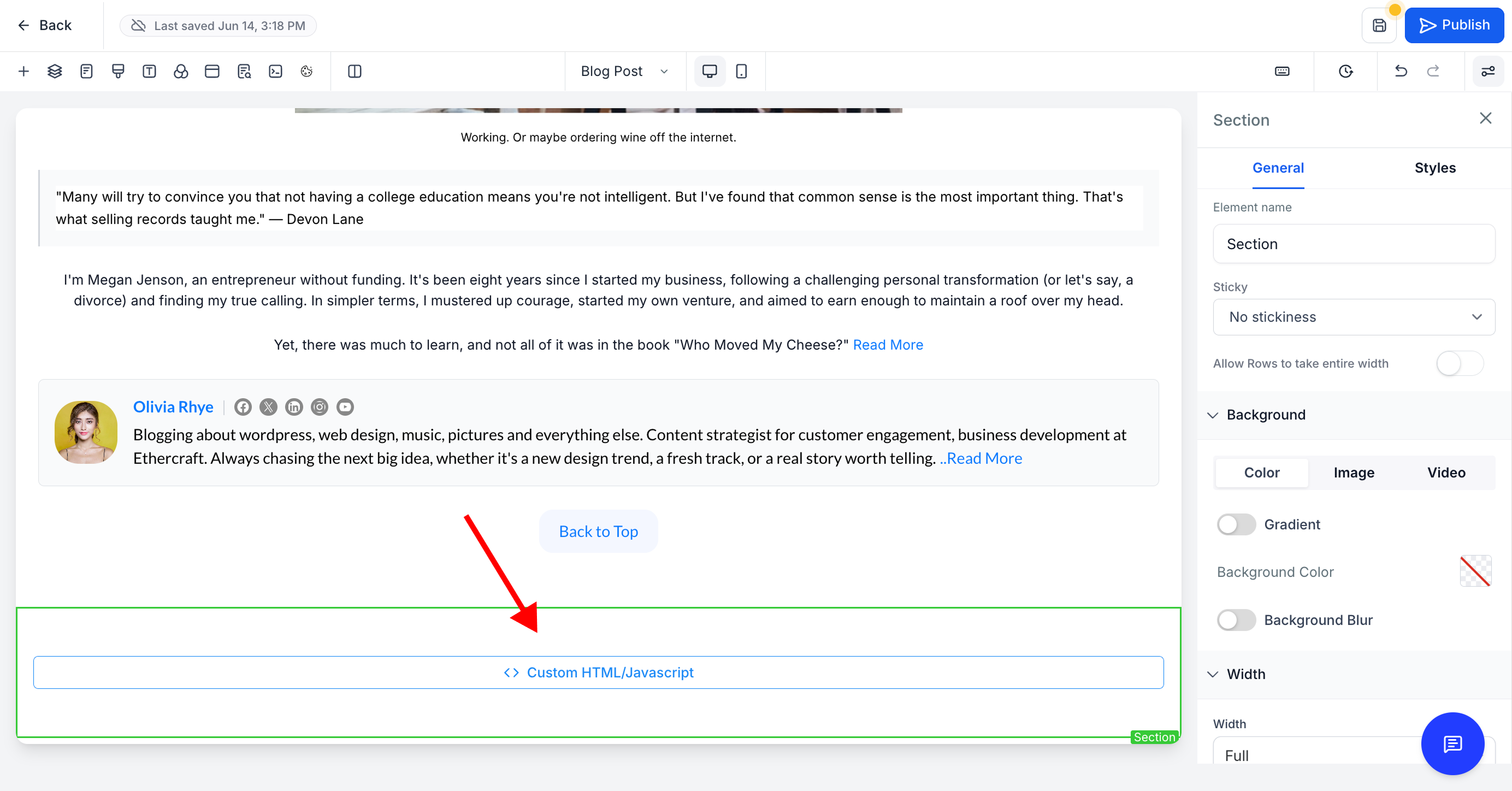
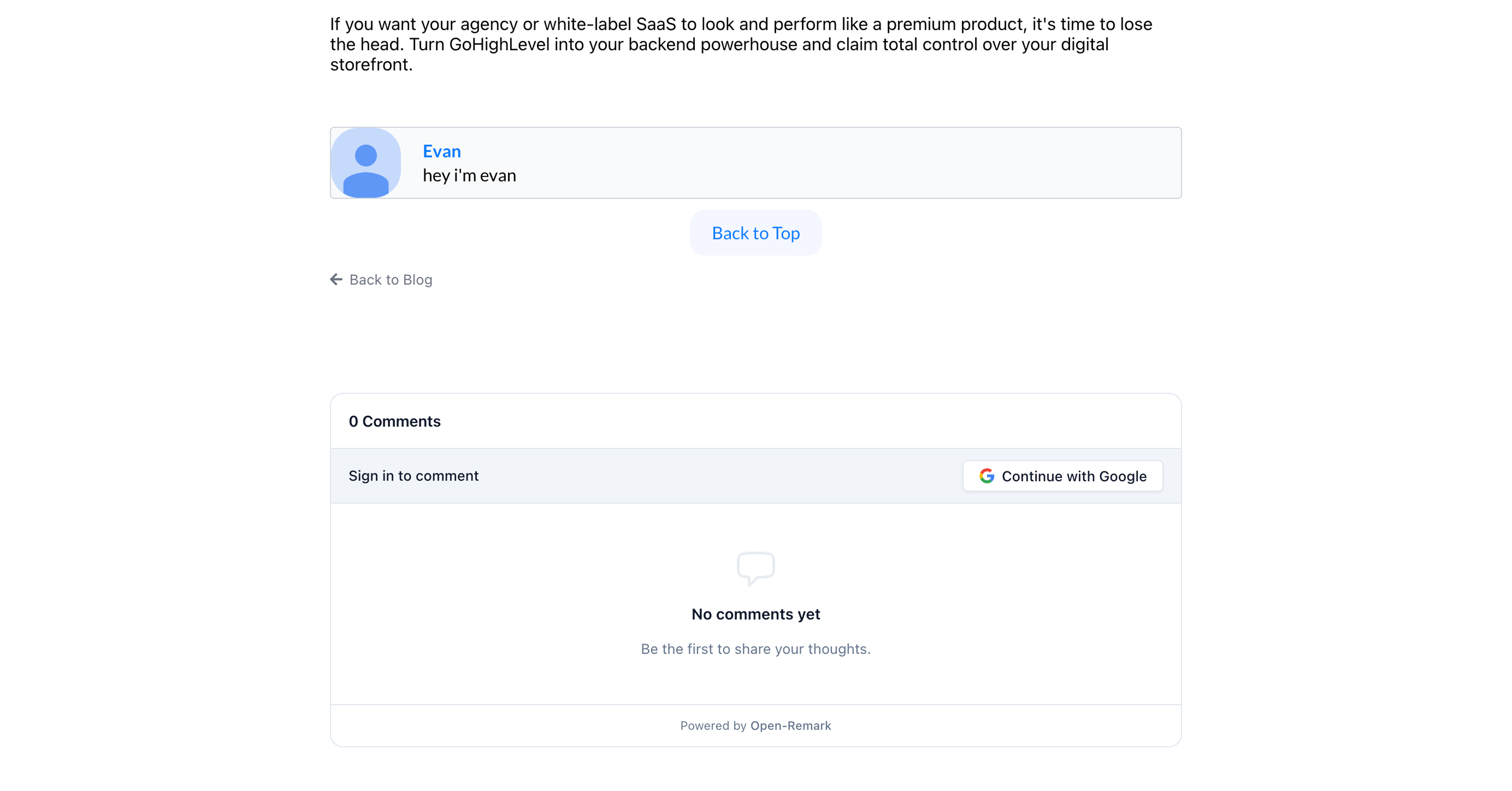
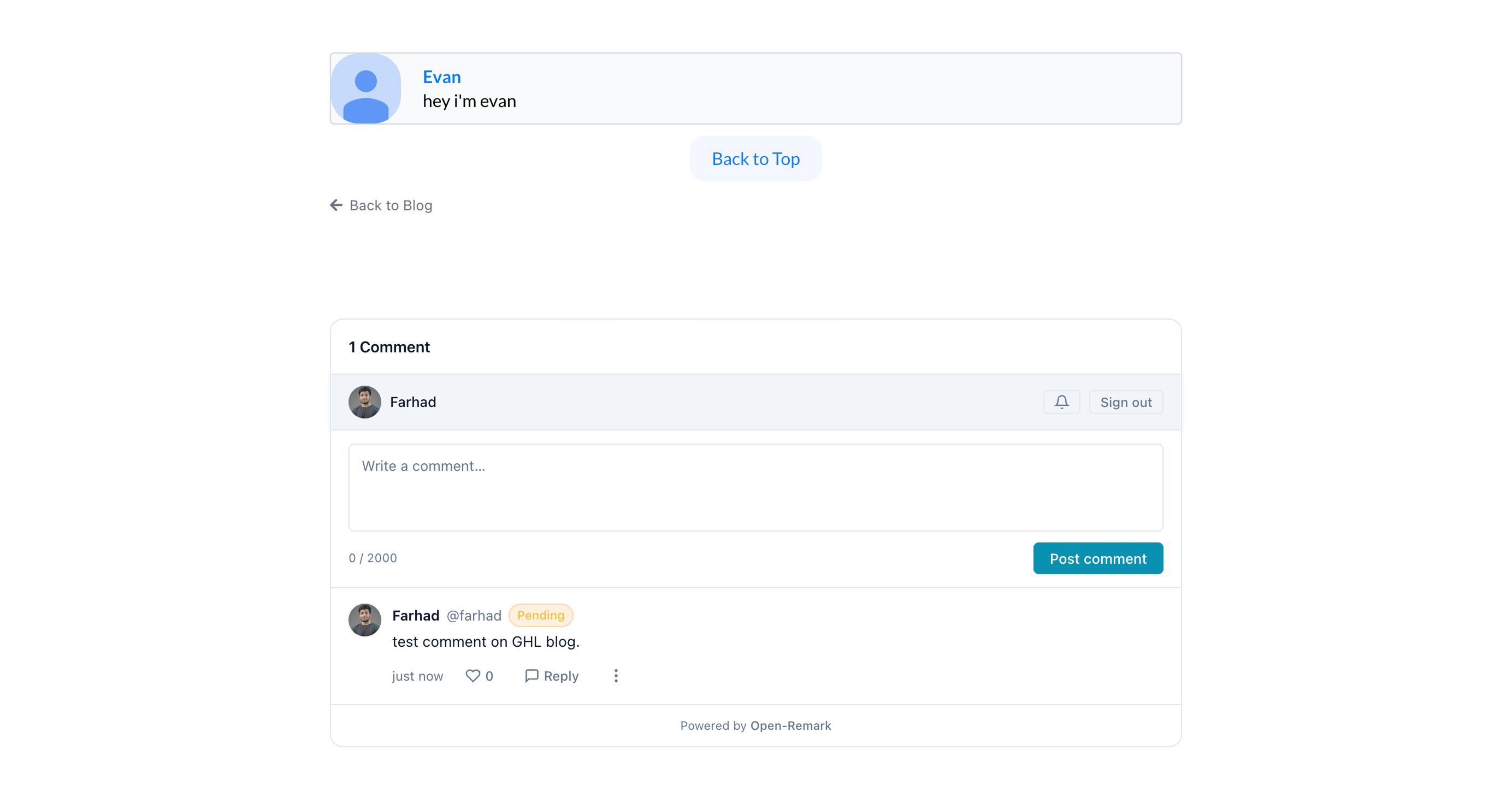
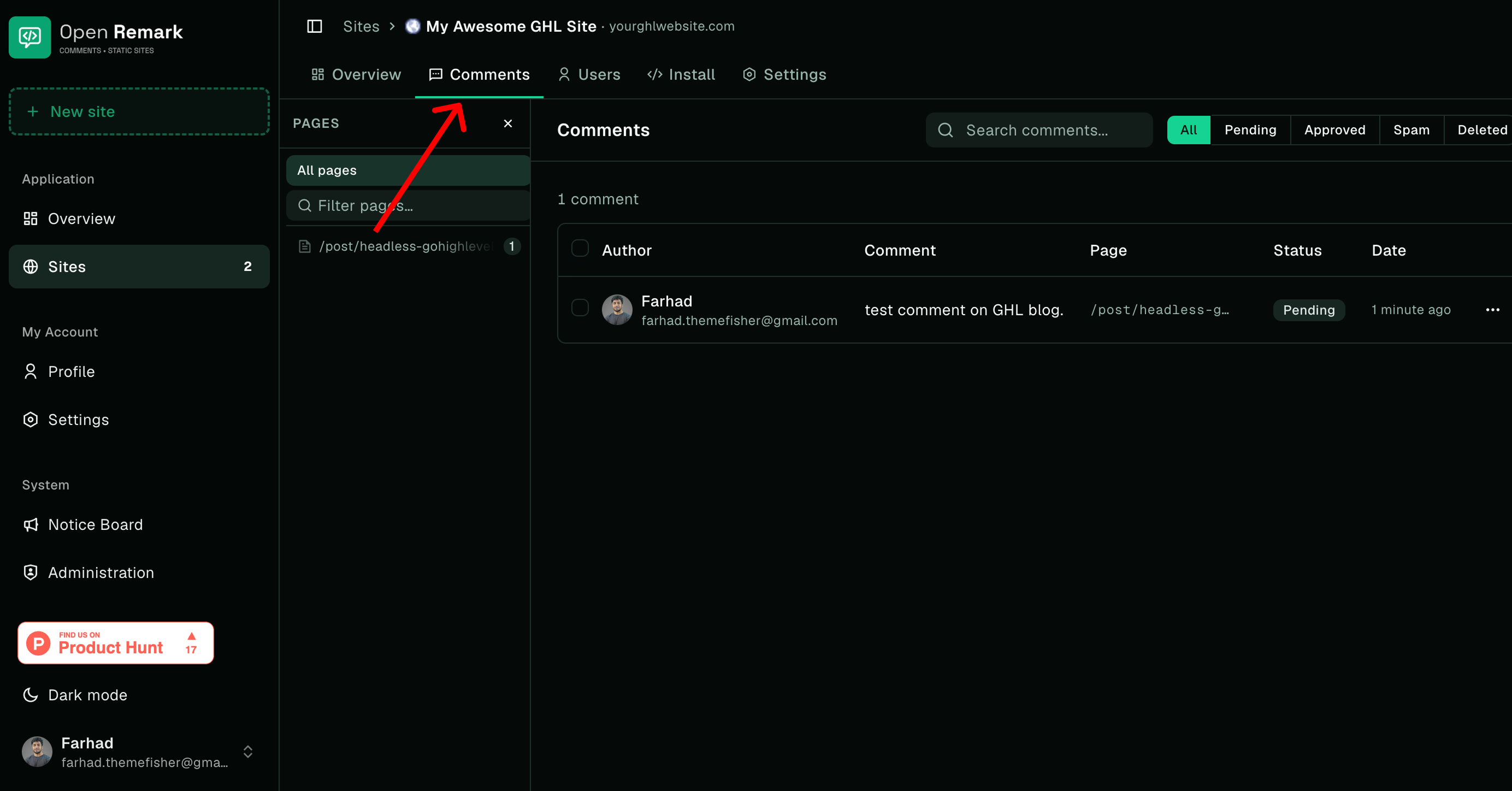
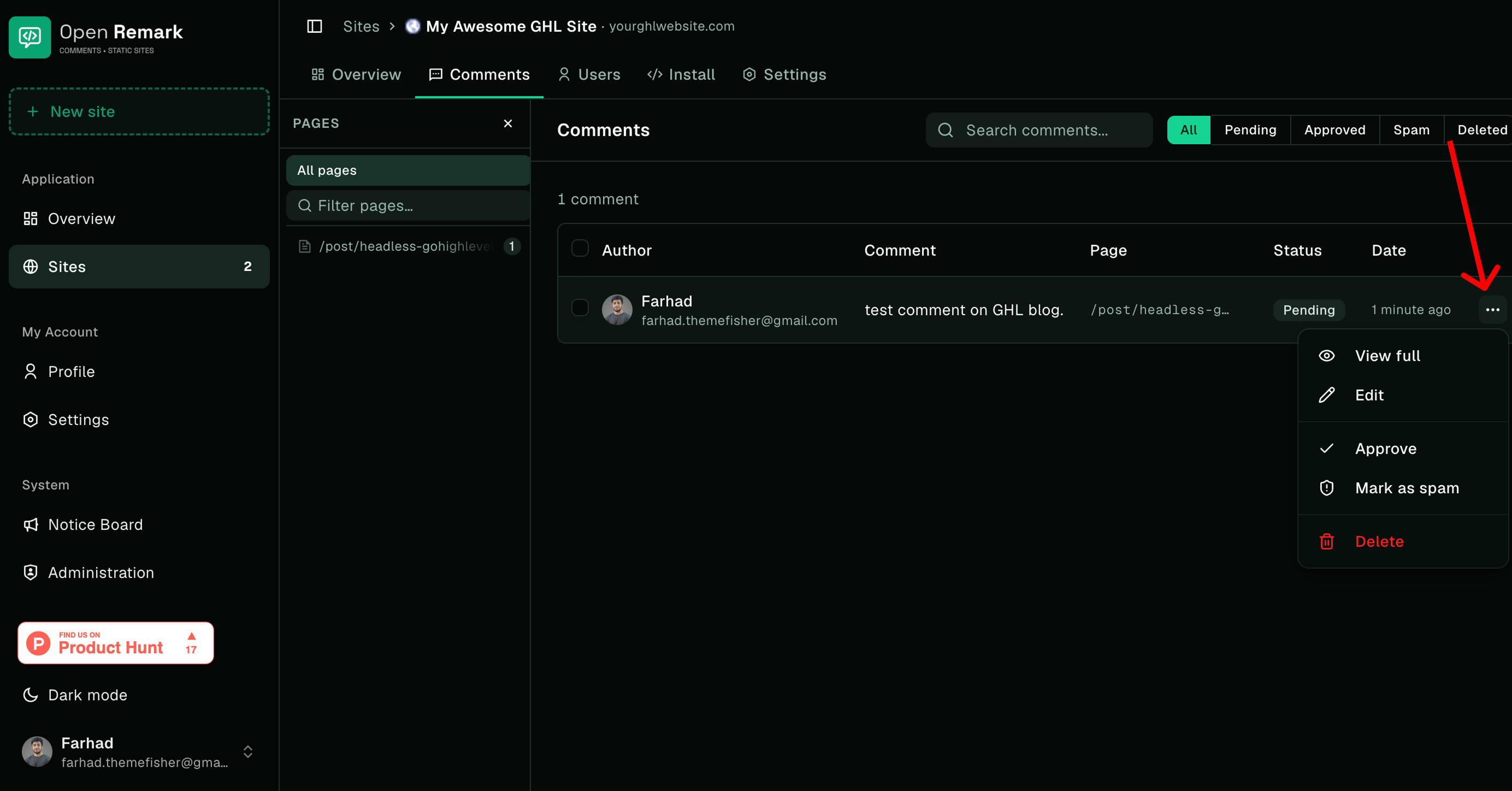
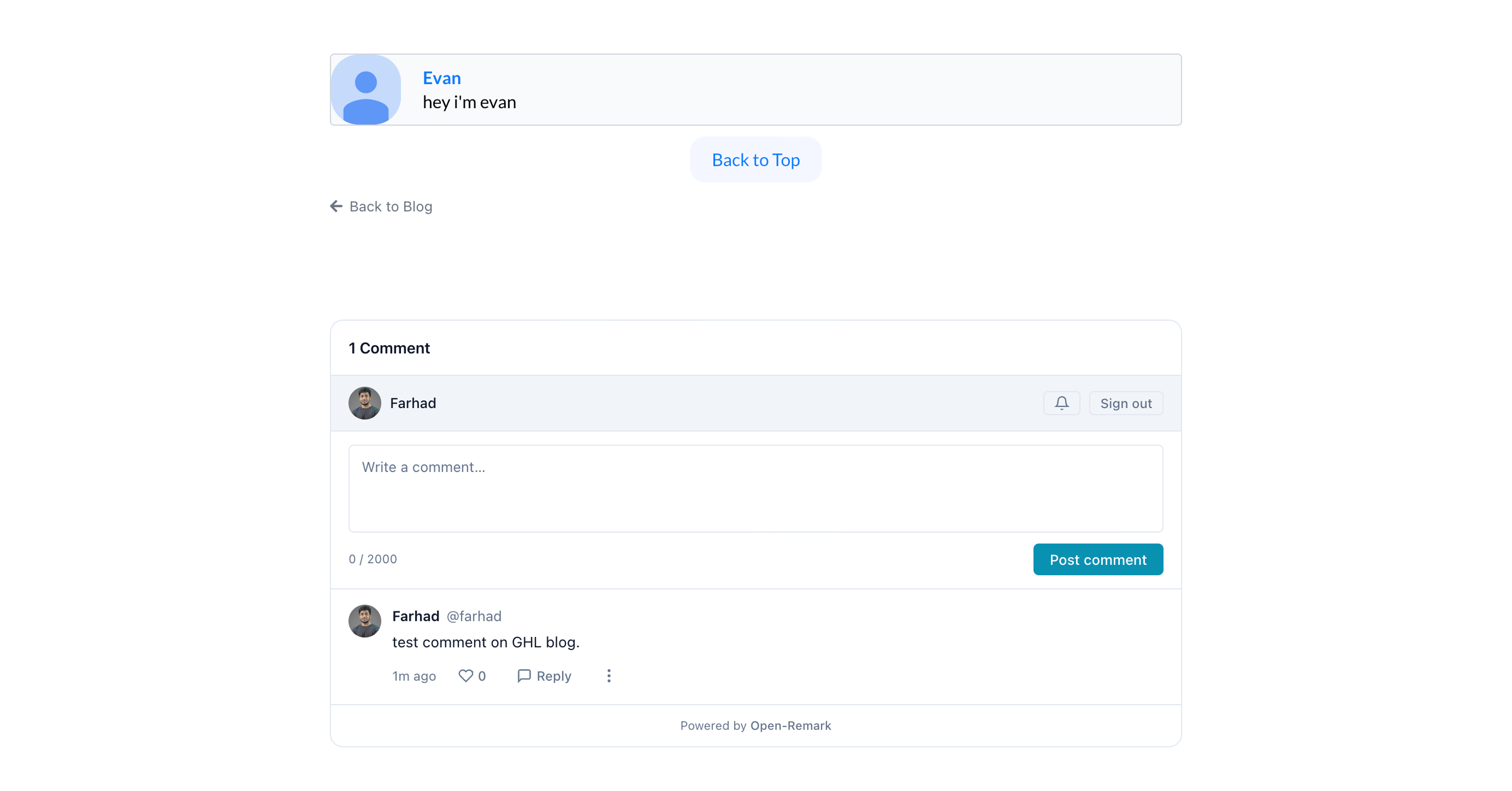
OpenRemark sends two types of email notifications: one to you as the site owner when a new comment comes in, and one to commenters when someone replies to them. Both require an SMTP connection.
Any SMTP provider works, including Gmail’s free SMTP. Go to your OpenRemark dashboard, open Email Notifications, and fill in the following:
| Field | What to enter |
|---|---|
| Host | Your SMTP server (e.g. smtp.resend.com or smtp.gmail.com) |
| Port | 465 for SSL, or 587 for TLS |
| From address | The sender email shown to recipients (optional, defaults to username) |
| Username | Your SMTP username (e.g. resend for Resend, or your Gmail address) |
| Password / API Key | Your SMTP password or API key from the provider |
You can also customize how notification emails look. Set a logo URL, accent color, subject prefix (default is [New Comment]), and footer text from the same settings page.
Once SMTP is configured, toggle Enable notifications to on.
After that, comment moderation works from the same dashboard. Comments go into a queue by default. Nothing appears publicly until you approve it. From the dashboard you can approve, reject, or mark comments as spam, and see exactly which page each comment came from.
No. GoHighLevel does not offer a native comment system for its blog feature. The request has been on the official ideas board since July 2022 with over 329 upvotes, but the feature has not been released as of 2026.
Yes. When you add the snippet to the Blog Post template in GHL, it applies to every post on that blog site. You do not need to add it per post.
OpenRemark’s free plan covers one site with unlimited comments. For unlimited sites, the lifetime plan is a one-time $47 payment (early bird pricing) with no recurring fees.
Yes. The full source is available on GitHub at github.com/zeon-studio/open-remark. You can self-host it on your own infrastructure for free, without any site or comment limits.
Yes. Any page in GHL that supports a Custom HTML element can embed OpenRemark. Landing pages, funnel steps, and regular site pages all work the same way.